
Guide
KnotQ is a free productivity app that integrates notes with a calendar for general purpose organization. Workspaces are local-first and owned by you, with optional account sync.
Schemes
Everything lives in a scheme—a markdown-like document. Create one with + New at the bottom of the sidebar or with Cmd+N.
Lines can be headings, checkmarks, bullets, numbered steps, or plain notes. Use Tab / Shift+Tab to indent and create nested structure.

Daily Queue
The Daily Queue gives you a fresh page every day. Incomplete items optionally carry over from the previous day, whereas completed tasks stay behind.

My workflow: at the start of the day (or the end of yesterday), I write an optimistic list of concrete, small tasks I want to finish. It's important these are specific items so that they are actionable. Throughought the day, I go through and check them off as I complete each one.
The point is that you never have to make a decision about what to do next. When you finish a task the next one is right there. The list being optimistic also means it almost always lasts me the entire day.
Before KnotQ, I found myself in the paradoxical state of having so many things I need to get done yet not doing anything because everything was such large task. Breaking these into actionable tasks daily helped me a lot.
Scheduling
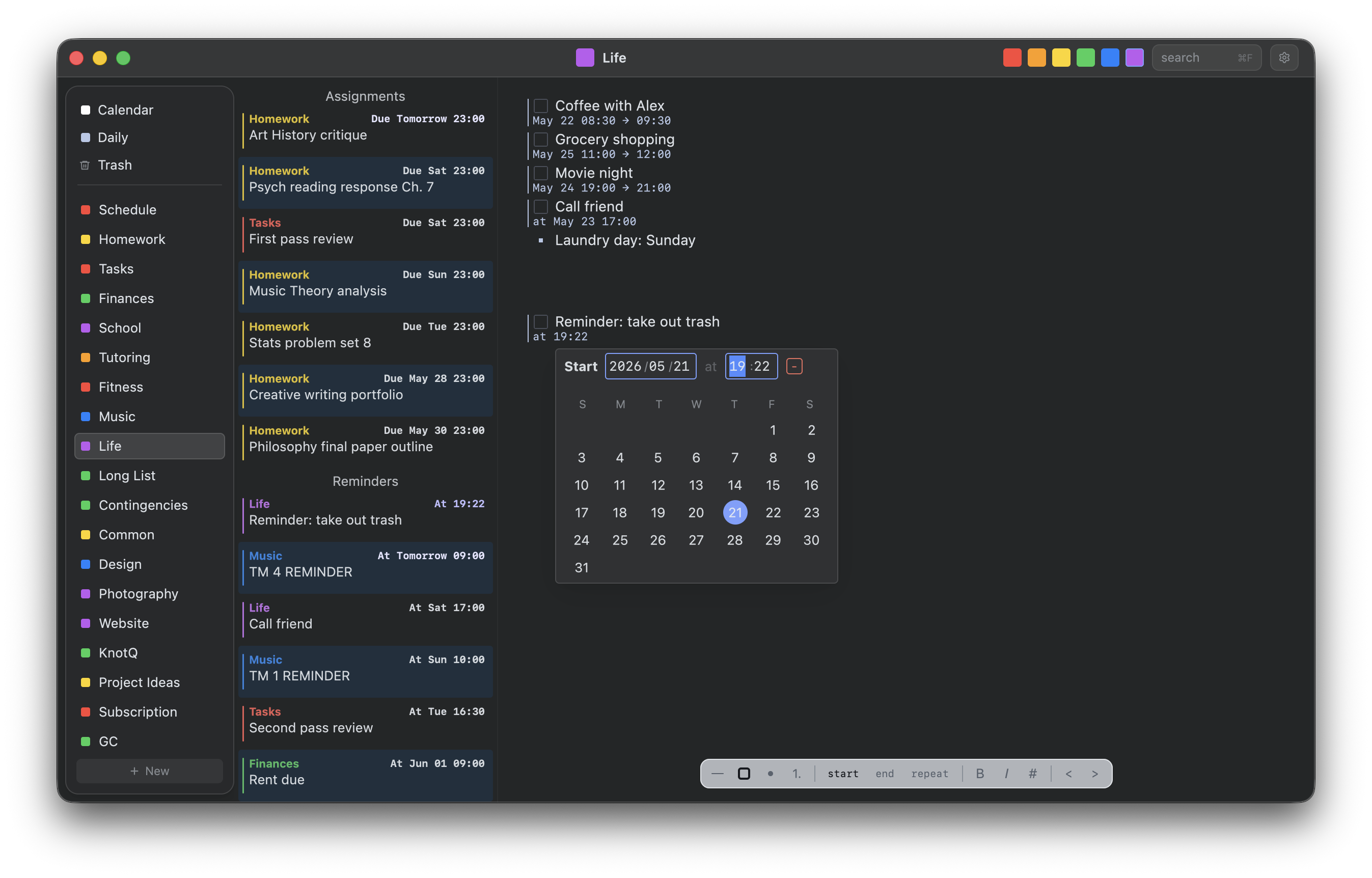
Any line can be scheduled by giving it a start time, end time, or both:
| Start | End | Type |
|---|---|---|
| Yes | Yes | Event — time block |
| No | Yes | Assignment — deadline |
| Yes | No | Reminder — alert |
| No | No | Procedure — planning only |
Press Cmd+S to set a start date and Cmd+E to set an end date. Both open a popover inline so you can pick a time without leaving the document. Use Cmd+R to add a repeat rule. You can also create items directly from the calendar: click a time slot for a reminder, shift+click for an assignment, or drag for an event.
Calendar
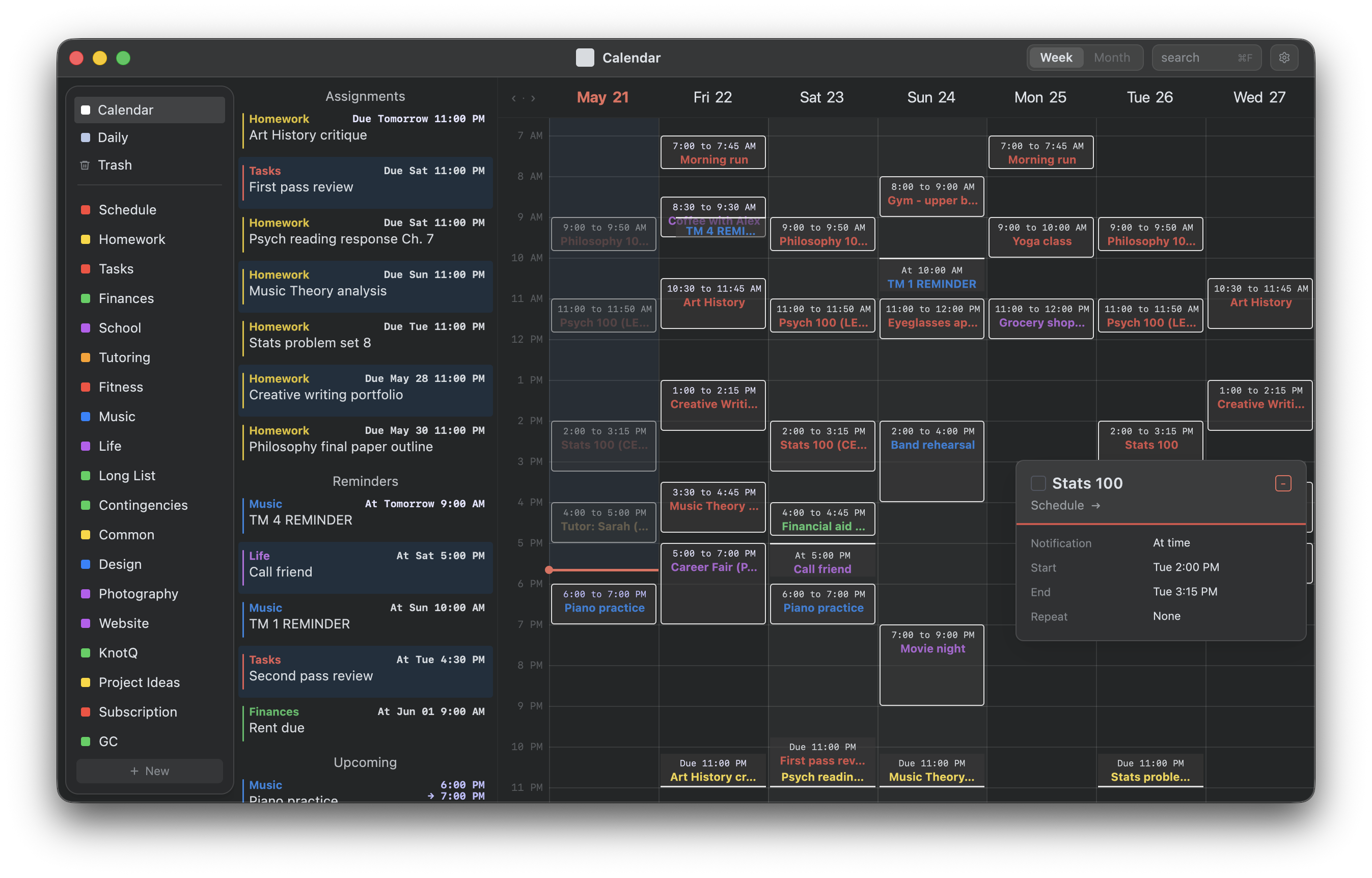
The calendar is a week-view grid that pulls events from all your schemes, color-coded by scheme. Click any event to jump to its source line in the editor. The upcoming panel on the left shows what's due next and is visible on every page.
Google Calendar
KnotQ can display your Google Calendar events alongside your schemes (read-only for now). You can create a new Google Calendar scheme by pressing new in the left sidebar.
AI & MCP
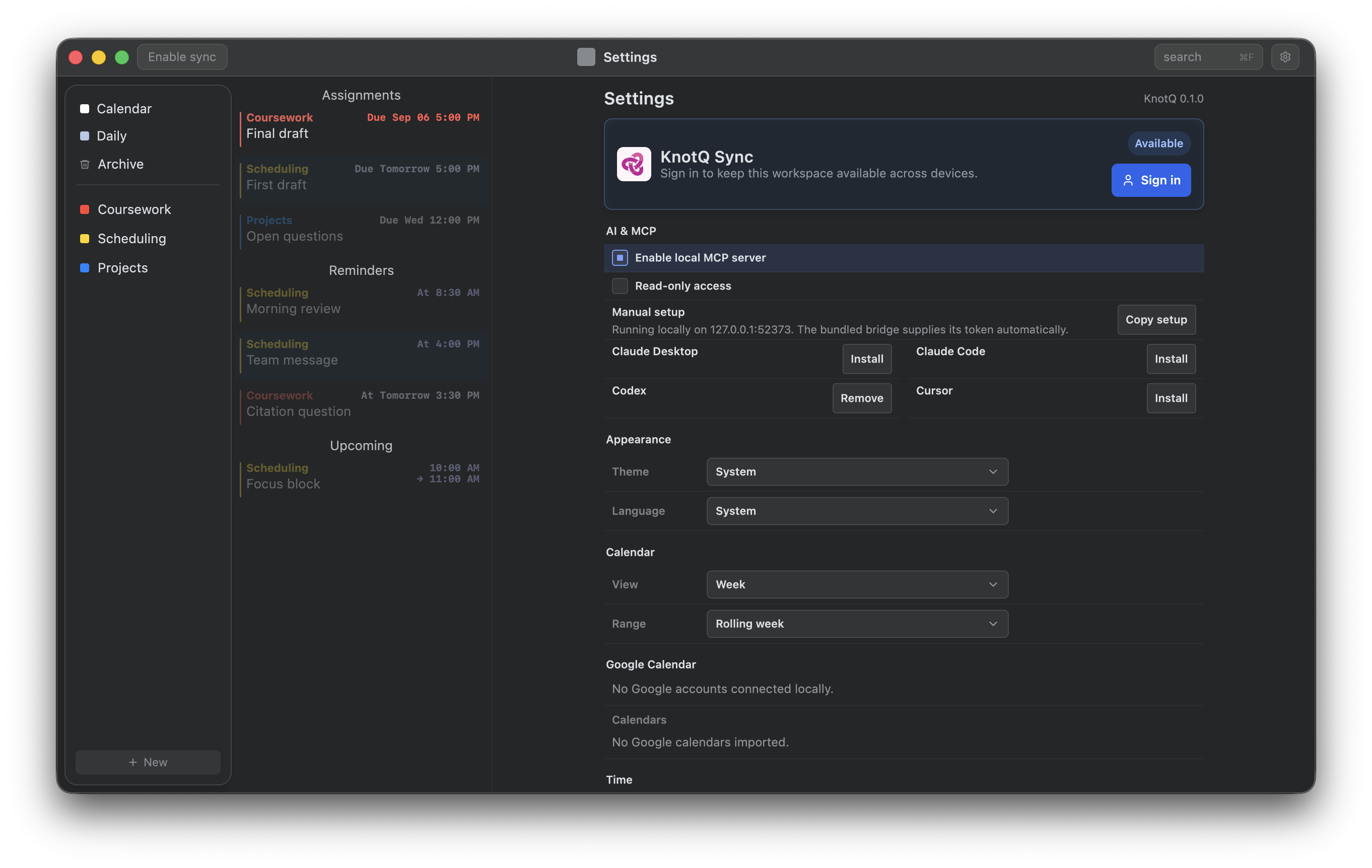
KnotQ can connect to Claude, Codex, Cursor, or any other MCP client so an assistant can read your workspace and make edits for you. The server runs locally on 127.0.0.1, stays off until you enable it, rejects browser-origin requests, and never listens on the network.
Every change an assistant makes goes through KnotQ's normal undo and sync path. It can create and edit schemes, folders, and items — dates, recurrence, and completion included — and archive them in an undoable way. Permanent deletion and account settings are never exposed, and Read-only access turns edits off entirely.
Get connected
- Open Settings → AI & MCP in the desktop app and enable the local server.
- Choose Install next to your client. KnotQ adds or updates only its own configuration entry.
- Restart the client. Its KnotQ tools are then available whenever KnotQ is running.
For any other client, choose Manual setup → Copy setup and paste the generated entry into the client's MCP settings. Always use the generated snippet — the bundled bridge path is different on every computer.
{
  "mcpServers": {
    "knotq": {
      "command": "/path/to/KnotQ/knotq-mcp"
    }
  }
}
The AI client launches the small bundled knotq-mcp bridge, which forwards requests to the running desktop app, so keep KnotQ open while you use the tools. Each launch of KnotQ mints a fresh local token. If KnotQ is closed or MCP is disabled, the client reports that the local server is unavailable.
Search
Press Cmd+F to search across all schemes and calendar items.
Keyboard shortcuts
All Cmd shortcuts work as Ctrl on Windows and Linux. Alt means Option on macOS.
App and views
| Shortcut | Action |
|---|---|
Cmd+N | New scheme |
Cmd+Shift+N | New folder |
Cmd+U | Open Calendar |
Cmd+D | Open Daily Queue |
Cmd+, | Open Settings |
Cmd+[ | Previous calendar period |
Cmd+] | Next calendar period |
F2 | Rename selected sidebar item |
Cmd+Q | Quit KnotQ |
Search and popovers
| Shortcut | Action |
|---|---|
Cmd+F | Open search |
Down / Tab | Select next search result |
Up / Shift+Tab | Select previous search result |
Enter | Open the selected search result, confirm rename, or close an event popup |
Escape | Close search, cancel rename/delete, stop calendar drag, or close the active popover |
Undo and clipboard
| Shortcut | Action |
|---|---|
Cmd+Z | Undo |
Cmd+Shift+Z | Redo |
Ctrl+Y | Redo on Windows and Linux |
Cmd+A | Select all editor text |
Cmd+C | Copy |
Cmd+X | Cut |
Cmd+V | Paste |
Cmd+Shift+V | Paste as plain text |
Editor movement and deletion
| Shortcut | Action |
|---|---|
Enter | Insert a new line |
Backspace / Shift+Backspace | Delete backward |
Delete / Shift+Delete | Delete forward |
Alt+Backspace | Delete previous word |
Alt+Delete | Delete next word |
Cmd+Backspace | Delete to start of line |
Cmd+Delete | Delete to end of line |
Left / Right | Move cursor by character |
Up / Down | Move cursor by line |
Alt+Left / Alt+Right | Move cursor by word |
Cmd+Left / Cmd+Right | Move to start or end of line |
Home / End | Move to start or end of line |
Cmd+Up / Cmd+Down | Move to start or end of document |
Shift+Arrow | Select by character or line |
Shift+Alt+Left / Shift+Alt+Right | Select by word |
Shift+Cmd+Left / Shift+Cmd+Right | Select to start or end of line |
Shift+Home / Shift+End | Select to start or end of line |
Shift+Cmd+Up / Shift+Cmd+Down | Select to start or end of document |
Formatting and scheduling
| Shortcut | Action |
|---|---|
Tab | Indent |
Shift+Tab | Unindent |
Cmd+1 | Set line type to plain |
Cmd+2 | Set line type to checkbox |
Cmd+3 | Set line type to bullet |
Cmd+4 | Set line type to numbered |
Cmd+B | Toggle bold |
Cmd+I | Toggle italic |
Cmd+Shift+X | Toggle strikethrough |
Cmd+J | Toggle heading |
Cmd+L | Toggle complete/incomplete |
Cmd+S | Toggle start date |
Cmd+E | Toggle end date |
Cmd+R | Toggle repeat rule |
Cmd+Shift+S | Remove start date |
Cmd+Shift+E | Remove end date |
Ctrl+Cmd+Space | Show the character palette on macOS |